
Your Steam trade URL: where to find it and why trades fail
· 4 min read
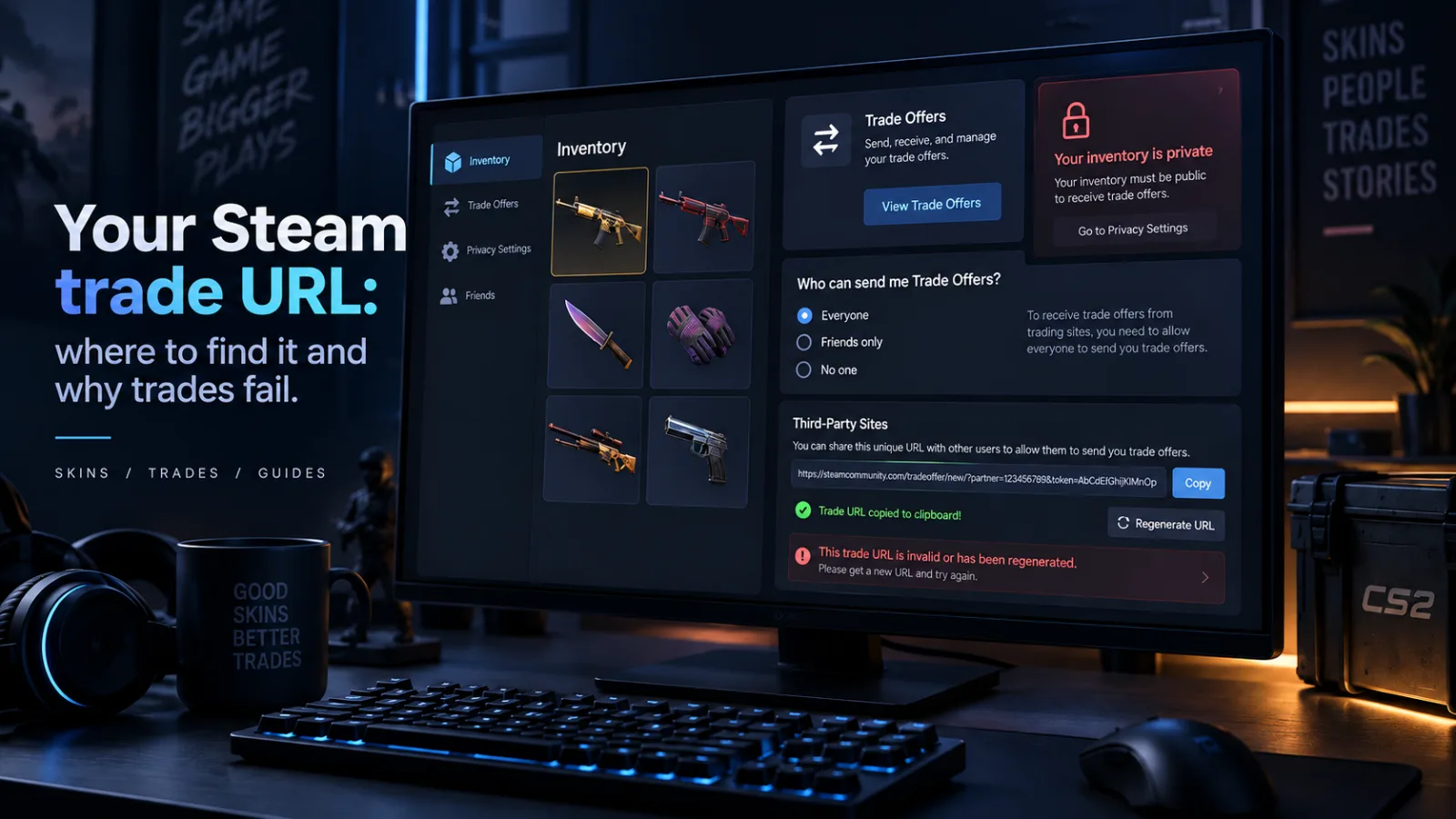
A valid Steam trade URL is one of the basic requirements for trading CS2 skins through a third-party marketplace. If the URL is wrong, outdated or incomplete, a trade offer may never reach your account.
This guide explains where to find your trade URL, what it does and what to check when a trade is not working.
Where to find your Steam trade URL
- Open Steam and go to your Inventory.
- Click Trade Offers.
- Select Who can send me Trade Offers?
- Scroll down to the Third-Party Sites section.
- Copy your full Trade URL.
A Steam trade URL normally contains your account's partner ID and a unique token.
The token allows another Steam account or a third-party service to send you a trade offer without first adding you as a Steam friend.
When your trade URL stops working
There are a few common reasons a previously working trade URL may fail.
You generated a new trade URL
Steam lets you create a new trade URL from the same page.
When you generate a new one, the old token becomes invalid. Any marketplace or service still using your previous URL will no longer be able to send trade offers through it.
On Skins Dojo, you can update it from Account Settings.
The URL was copied incorrectly
A missing character, incomplete token or accidentally shortened URL can make the trade URL invalid.
The safest approach is to copy the entire URL directly from Steam and paste it without editing it.
Your inventory is private
Your trade URL and your inventory privacy are separate settings.
A valid trade URL can still exist while your inventory is private. However, marketplaces that need to check which CS2 items you own may not be able to access your inventory.
Setting your Steam inventory to public
Open your Steam profile and go to:
Edit Profile → Privacy Settings
Set:
Inventory → Public
This is one of the most common points of confusion.
Common trade URL problems
| What you see | What it usually means |
|---|---|
| Invalid trade URL | The URL may be incomplete, incorrectly entered or using an old token. |
| Inventory is private | Your Steam Inventory privacy setting is not Public. |
| Trade offer does not arrive | Check your Steam Trade Offers page directly and make sure the saved URL is current. |
| Trade cannot be completed | The issue may be caused by Steam account restrictions, item restrictions or Steam Guard requirements. |
Not every failed trade is caused by the trade URL.
Steam security restrictions, item trade restrictions, temporary Steam issues and account-level limitations can also stop a trade from completing.
If you regenerate your trade URL
After creating a new trade URL:
- Copy the new URL from Steam.
- Update it on every marketplace you use.
- Save the new URL in your account settings.
- Make sure your Steam Inventory is still set to Public.
On Skins Dojo, the trade URL is checked when you save it so obvious formatting problems can be caught before you start a trade.
The short version
- Copy the complete trade URL directly from Steam.
- Keep your Steam Inventory set to Public.
- Your Game details can remain private.
- Update your saved trade URL whenever you generate a new one.
- Remember that Steam restrictions can still prevent a trade even when the URL itself is correct.